


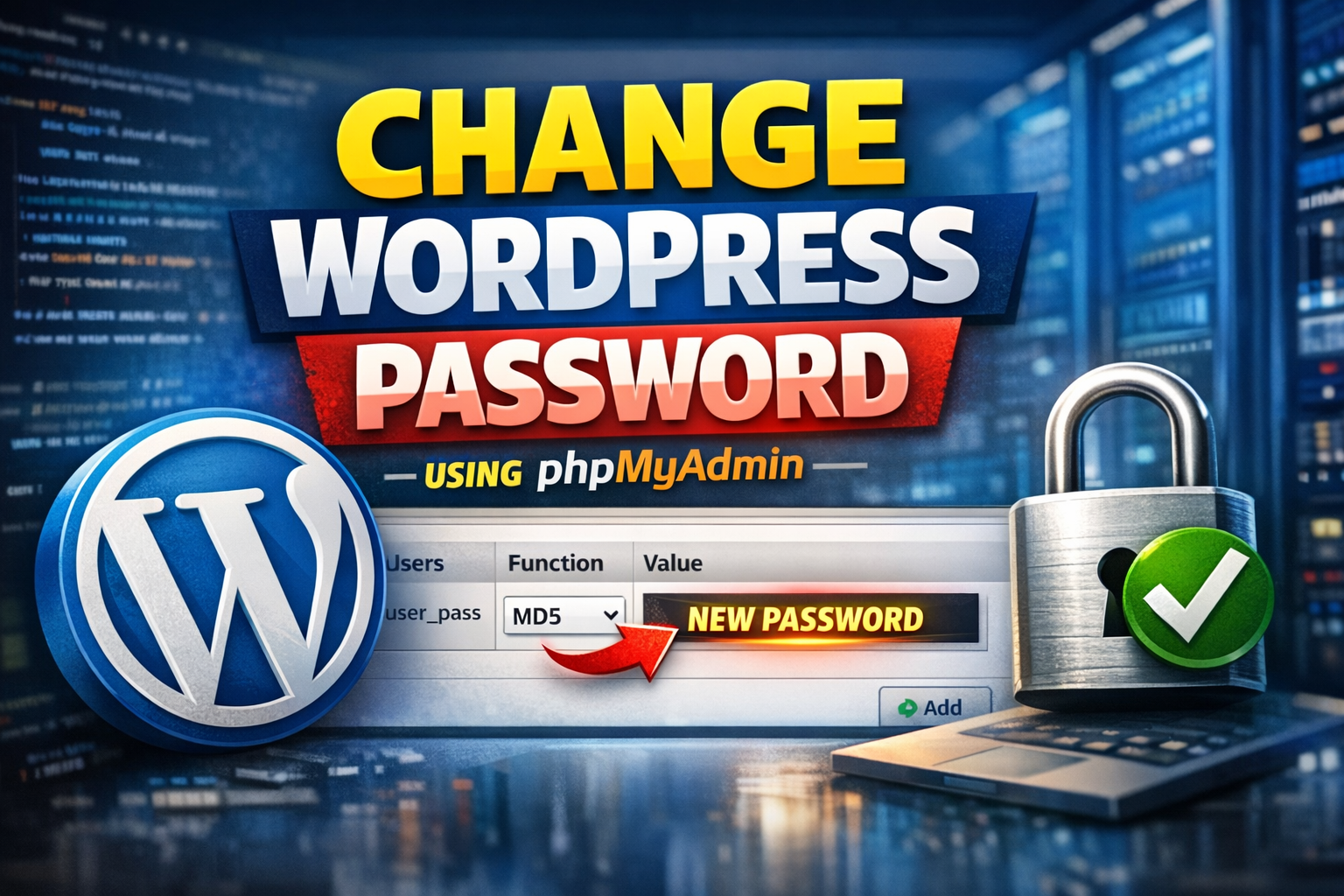
Have you forgotten your WordPress password or lost access to your admin account? Don’t worry! In this guide, we’ll show you how to change your WordPress password using phpMyAdmin quickly and safely. You can also watch our step-by-step tutorial video below.
Step 1: Log in to your cPanel
- Open your hosting account and log in to cPanel.
- Scroll down to the Databases section and click phpMyAdmin.
Step 2: Select Your WordPress Database
- In phpMyAdmin, find the database associated with your WordPress site.
- Click on the database name to view all tables.

Step 3: Open the wp_users Table
- Look for the table named
wp_users. The prefix may vary if you changed it during installation. - Click Browse to see all WordPress users.
Step 4: Edit Your User Password
- Find the row with your WordPress username.
- Click Edit.
- In the
user_passfield, select MD5 from the function dropdown. - Enter your new password in the
Valuefield.

Step 5: Save Changes and Log In
- Click Go or Save to update the password.
- Now, go to your WordPress login page and log in with your new password.
Tips & Precautions
- Always back up your database before making changes.
- Use a strong, secure password with letters, numbers, and symbols.
- Only use this method if you cannot reset via email.
Conclusion / CTA
Changing your WordPress password using phpMyAdmin is safe if done carefully.
If you want hosting optimized for WordPress with automatic updates, backups, and security, check out HostCry WordPress Hosting Plans.